

.jpg)
- Why Shoppable Video Works
- What You'll Need Before You Start
- Step 1: Choose Your Video Source
- Step 2: Pick the Right Widget Type
- Step 3: Import and Tag Your Videos
- Step 4: Place Widgets on the Right Pages
- Step 5: Customize the Look
- Step 6: Go Live and Test
- Step 7: Track What's Working
- Real-World Examples
- Common Mistakes to Avoid
- Frequently Asked Questions
Why Shoppable Video Works (And Why Most Stores Don't Have It Yet)
Here's the version of events most Shopify merchants live through. You spend months building a great product. You nail the photography. You write tight copy. You drive traffic with paid ads or SEO. Customers land on your product page — and then leave.
The conversion rate sits at 2–3% and you tell yourself that's normal. Which it is. But it doesn't have to be.
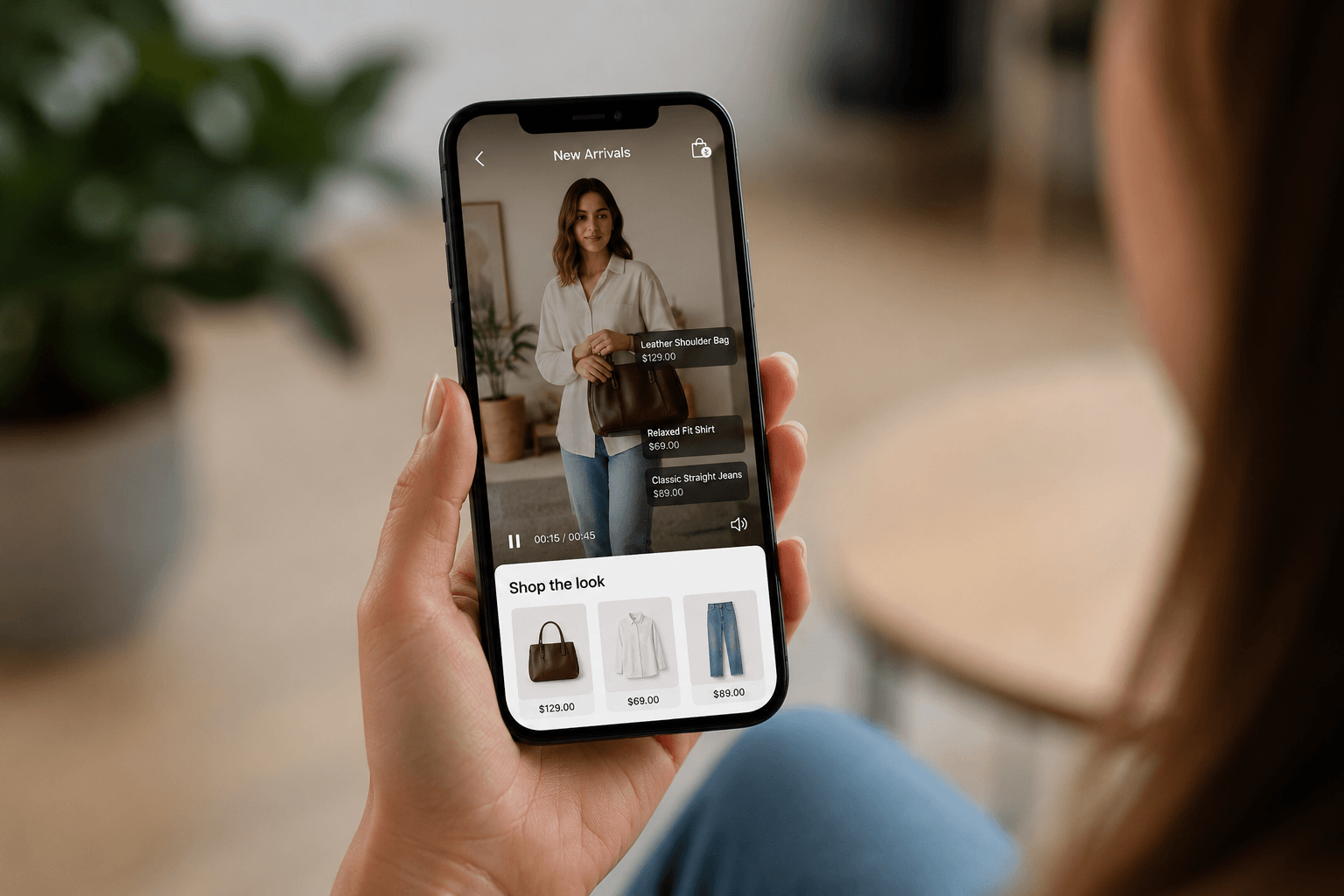
The problem isn't your product. It's the format. Static photos can show what something looks like. They can't show how a jacket moves in the wind, how a skincare product actually applies, how a piece of gym equipment fits into a real home. That gap between what a photo can communicate and what a shopper actually needs to feel confident buying — that's where shoppable video lives.
According to Wyzowl's State of Video Marketing report, 89% of consumers say watching a brand video has convinced them to make a purchase. And the key insight isn't just that video converts — it's where it converts. Video on your social platforms reaches people who are browsing. Video on your product page reaches people who are already in buying mode. That's a completely different level of intent, and shoppable video is built specifically for that moment.
The reason most stores don't have it yet is simpler than you'd think: it used to be hard. Custom video embeds required developer time, performance tradeoffs, and ongoing maintenance. The modern generation of Shopify-native shoppable video apps has removed all of that. You can go from zero to live in under 30 minutes, with no code and no developer, while keeping your page load time essentially identical to what it was before.
What You'll Need Before You Start
Before diving into setup, it helps to have a few things ready:
Video content. This doesn't need to be polished brand video. In fact, authentic UGC often outperforms produced content because it looks like the social proof it is. If you have TikToks, Instagram Reels, customer-submitted videos, or product demos — you have everything you need. Even a handful of strong videos is enough to get started.
A Shopify store. Specifically, you'll want access to your theme editor and the ability to install apps from the Shopify App Store.
A shoppable video app. There are several options covered in the best shoppable video apps for Shopify roundup. For this guide, we'll walk through the setup process using Moast, since it's the fastest to set up, has the most generous free plan, and has the lightest performance footprint of any app in the category.
Your product URLs or handles. You'll need to tag products in your videos during setup, so have your product pages open in another tab.
Step 1: Choose Your Video Source
The first decision is where your video content is coming from. You have three main options:
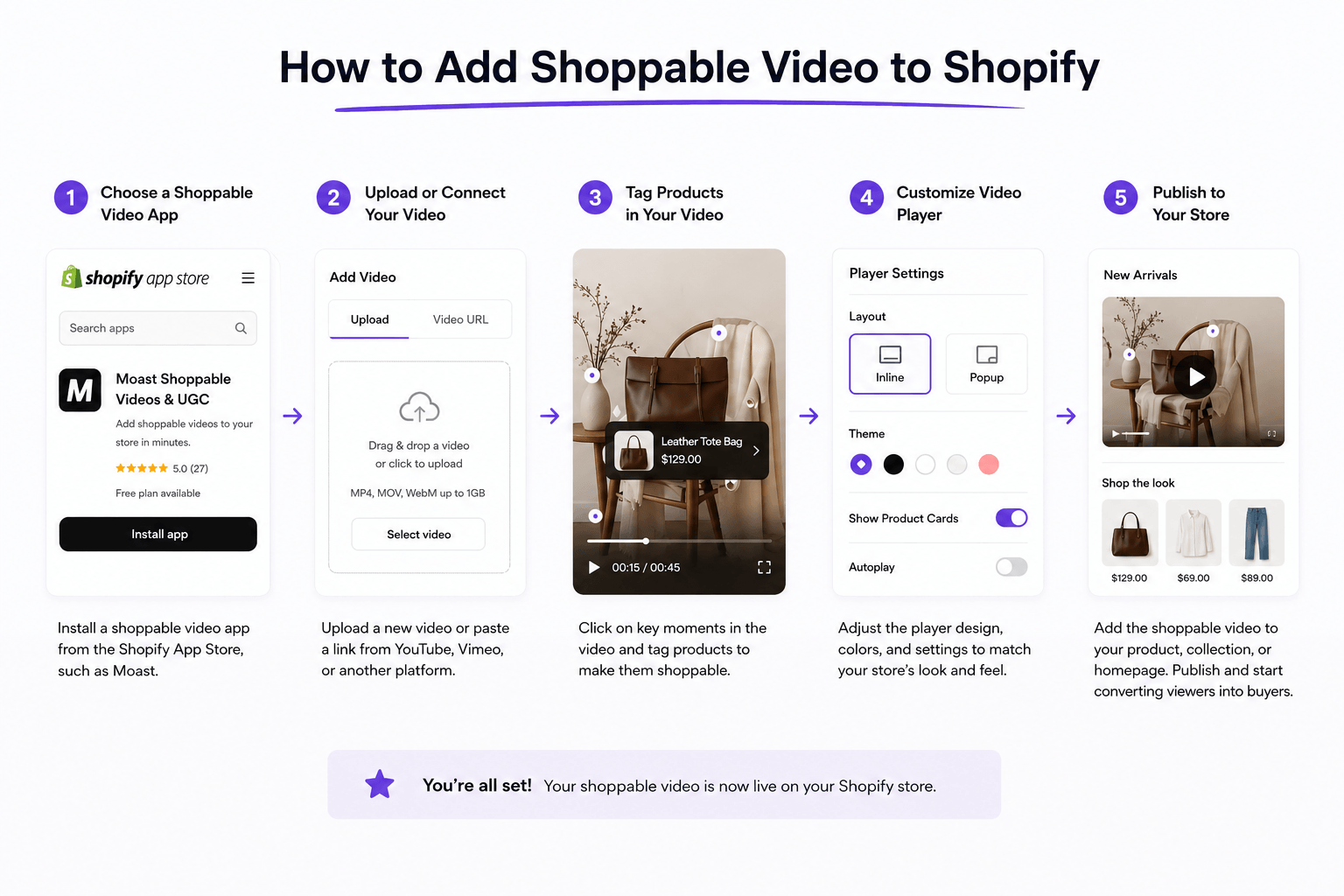
Import from TikTok or Instagram. This is the fastest path for most merchants. If your brand or customers have posted videos featuring your products, you can pull them directly into your store by pasting a URL. No downloading, no re-uploading. With Moast, you paste the link and the video is imported in seconds, ready to tag and publish.
Upload video files directly. If you have product demos, brand videos, or customer testimonials saved as files, you can upload them directly. MP4 works best. Keep file sizes under 50MB where possible for the fastest load experience.
Collect UGC from your customers. This is the longer-term play but often produces the best-converting content. Tools like Moast Collect let you automatically request video testimonials from customers after purchase — no chasing required. Over time, your library builds itself.
For most merchants just getting started, the right move is to start with TikTok and Instagram imports. You almost certainly have content there already, and it takes about five minutes to pull into your store.
Step 2: Pick the Right Widget Type for Each Page
This is the step most guides skip, and it matters more than you'd expect. Different widget formats work better in different contexts. Using the wrong format on the wrong page is one of the most common reasons merchants don't see strong results from shoppable video.
Here are the four main widget types and where each one earns its place:
- Video carousel. A horizontal row of shoppable videos that shoppers can scroll through. This is the most versatile format — it works well on homepages, collection pages, and PDPs. It's familiar, low-friction, and easy to scan. If you only deploy one widget type to start, make it a carousel.
- Stories-style pop-up. A vertical, full-screen video experience triggered by clicking a story bubble — identical to Instagram Stories in feel. This format is extremely powerful on PDPs because it mimics the browsing behavior mobile shoppers already understand instinctively. ThruDark, the premium performance apparel brand, uses this format directly above their reviews section on PDPs — placing authentic video content exactly where shoppers naturally look for validation before buying.
- Featured video. A single, prominent video placement — typically hero-sized. Best used on homepages for brand storytelling, or on landing pages for product launches and campaigns. Not ideal for PDPs where you want multiple videos and quick scan-ability.
- Floating bubble. A small video icon that follows shoppers as they scroll, expanding when clicked. Good for persistent visibility without taking up page real estate. Works well on product pages with long descriptions where you want video accessible throughout.
A quick rule of thumb: use carousels for discovery (homepage, collection pages) and stories for conversion (PDPs). The placement where you're asking someone to buy is where the deeper, more immersive format pays off most.
Step 3: Import and Tag Your Videos
Once you've chosen your source and widget type, it's time to bring your videos in and make them shoppable. This is the step that turns a regular video into a revenue-generating asset.
- Import your first video. In Moast, open the app and click Add Video. Paste your TikTok or Instagram URL, or upload a file. The video will appear in your library within a few seconds.
- Tag your products. In the video editor, click on the frame where you want a product tag to appear — typically when the product is most visible on screen. Search for the product by name or handle, select it, and position the tag. You can add multiple product tags to a single video.
- Write a caption if needed. Not always necessary, but useful for context — especially on tutorial or how-to style videos where a brief description helps shoppers understand what they're watching.
- Repeat for your remaining videos. Five to ten well-tagged videos is enough to launch with. With automatic Instagram sync, new content you post can be pulled in automatically without any manual work.
Research on UGC and social proof consistently shows that people trust content from other consumers more than content from brands — a dynamic that applies just as strongly on product pages as it does on social media.
Step 4: Place Widgets on the Right Pages
Here's where it all comes together. You've got videos. They're tagged. Now you decide where they live on your store.
Product Detail Pages (PDPs) — highest priority. This is where buying decisions happen. A shoppable video carousel or stories widget placed on your PDP — ideally above the fold or directly above your reviews section — catches customers at the highest point of purchase intent. Dame added Moast videos to their PDPs and saw a $26K increase in monthly revenue along with a $0.16 lift in revenue per visitor, without any increase in traffic.
Homepage. A video carousel on the homepage builds immediate trust and sets the tone for new visitors. Use brand content and lifestyle video here — less about a specific product, more about who you are and what your products feel like in the real world.
Collection pages. Placing shoppable video on collection pages helps shoppers quickly understand your product range before diving into individual PDPs. This reduces friction and often increases the number of pages visited per session.
Landing pages. For paid traffic campaigns, a shoppable video embed on a dedicated landing page is one of the highest-ROI placements available. Visitors who arrive from an ad already have context — give them video that reinforces what they just saw and makes it immediately shoppable.
In Moast, widget placement works through Shopify's native theme editor. Go to your theme, find the section where you want the widget, add a Moast block, select the video group you created, and it's live. No code required.
Step 5: Customize the Look to Match Your Brand
One of the most common concerns merchants have about third-party video widgets is that they'll look bolted on — a generic app element that clashes with the carefully built aesthetic of the store. Done right, shoppable video should feel like it was always there.
Most good shoppable video apps give you control over:
- Widget dimensions and layout. How wide, how tall, how many videos visible at once, whether arrows or dots appear for navigation.
- Autoplay behavior. Whether videos start playing when a shopper scrolls into view or require a tap or click.
- Product tag style. The look of the in-video product tags — size, color, shape, placement. These should be visible without being distracting.
- Border radius and spacing. Small details that make a widget feel native to your theme rather than dropped in from outside.
- Branding. On Moast's paid plan, you can remove the Moast branding from the widget entirely, giving you a completely clean, white-label video experience.
ThruDark specifically called out customization as a key reason they chose Moast: "The customization gave us the exact look we wanted on our PDPs." For a premium brand where every design detail matters, that flexibility is non-negotiable.
Step 6: Go Live and Test
Before calling it done, run through this checklist:
- Mobile view. Open your store on your phone and confirm the widget renders correctly, loads quickly, and the product tags are tappable without being too small. The majority of your shoppers are on mobile — this is the experience that matters most.
- Page speed check. Run a quick Google PageSpeed Insights test on a page before and after adding the video widget. A well-optimized app like Moast (0.85MB total load) should have minimal impact on performance.
- Tag functionality. Tap each product tag in the video and confirm it opens the correct product and that add-to-cart works as expected.
- Cross-browser. Quickly check on Safari, Chrome, and Firefox. Video rendering can occasionally behave differently across browsers.
- Analytics connection. Confirm that your analytics dashboard is showing views and engagement data so you'll have something to review after launch.
Step 7: Track What's Working
Adding shoppable video is not a set-and-forget exercise. The merchants who get the best results treat their video library as an active asset — rotating content, testing placements, and doubling down on what's performing.
The key metrics to watch:
- Video views. Are people watching? If views are low on a specific widget, the problem is usually placement (it's too far down the page) or thumbnail (the first frame isn't compelling enough).
- Click-through rate on product tags. How many people who watch are clicking through to a product page? This tells you how well the video content is connecting to buying intent.
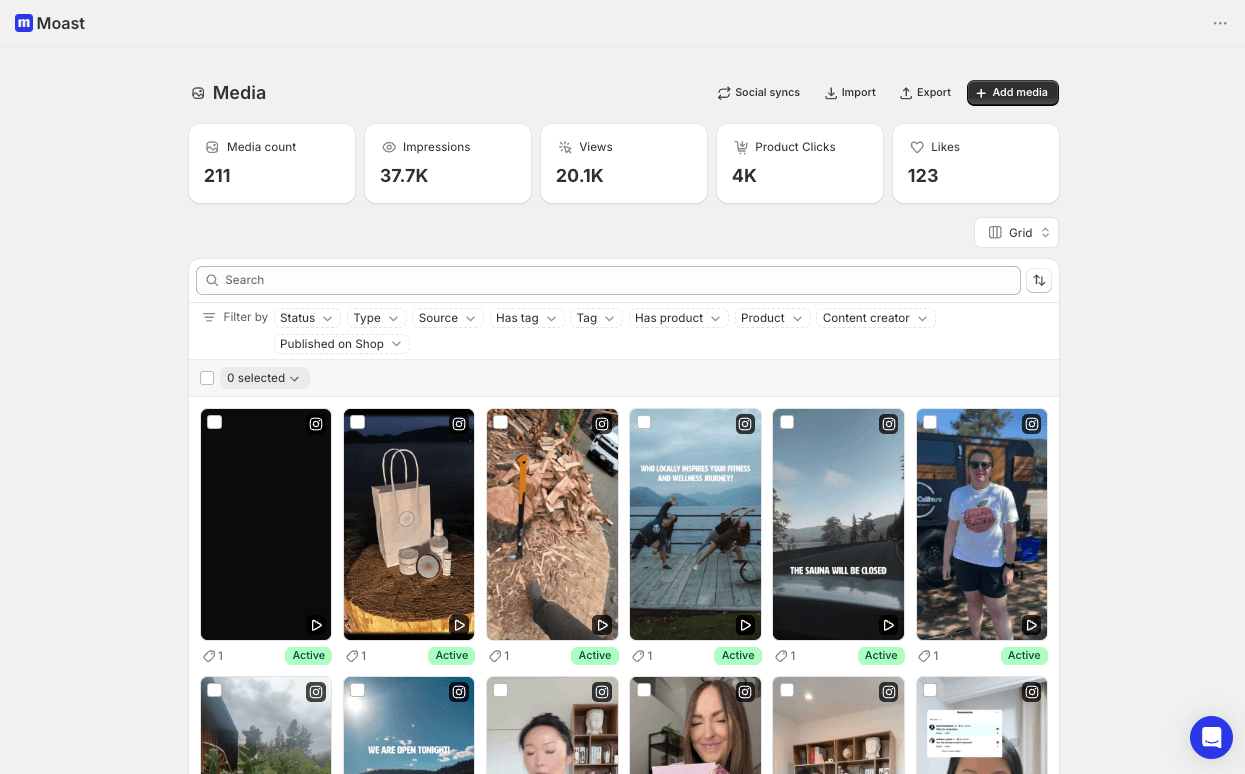
- Add-to-cart from video. The direct revenue signal. Moast's analytics dashboard shows attribution at the video level, so you can see exactly which pieces of content are driving cart additions.
- Revenue per visitor on pages with video vs without. This is the metric that tells the real story. Dame's $0.16 lift in revenue per visitor is a clean example — same traffic, more revenue, because the page experience is more convincing.
Real-World Examples: How Brands Are Doing It
ThruDark — Social proof on technical product pages. This premium performance apparel brand, founded by former special forces operators, needed their PDPs to work much harder. Their products are premium-priced and highly technical — customers need to see them in real-world conditions to feel confident buying. They placed a Moast shoppable carousel directly above their reviews section, bringing UGC and social content into the purchase experience. Within 30 days: 293 videos live across their PDPs, 3,390+ monthly video views, and $5,854 in attributable sales — from existing content they already had.
Dame — Revenue lift without traffic increase. Dame added Moast shoppable videos to their product pages and saw a $26,000 increase in monthly revenue alongside a 17% lift in conversion rate and a $0.16 improvement in revenue per visitor. No additional ad spend. No new products. Just a better-equipped product page.
LNDR — Scale with predictable costs. LNDR averages 41,500 video views per month across their Moast widgets. With unlimited views on their plan, their costs stay flat as their content performs better — the inverse of what would happen with a view-based pricing model.
Common Mistakes to Avoid
Putting video only on the homepage. Homepages get browsed; PDPs get bought from. If you're only deploying video on the homepage, you're missing the highest-conversion placement on your store.
Using only produced brand video. Authentic UGC and real customer content consistently outperforms polished brand video on product pages. Studies on consumer trust show that shoppers find user-generated content 9x more trustworthy than brand-produced content. Mix both, but don't underweight UGC.
Not tagging products. A video without product tags is just a video. It adds engagement but doesn't directly drive add-to-carts. Tag every video before publishing.
Too many videos in one widget. A carousel with 4–6 strong, well-tagged videos will outperform a carousel with 20 mediocre ones. Curate ruthlessly. Let your best content lead.
Ignoring page speed. Some video apps are significantly heavier than others. Always check your Core Web Vitals after adding any new embed. A slow page hurts both SEO and conversion — the opposite of what you're trying to achieve.
Treating it as a one-time setup. The best results come from merchants who actively manage their video library — adding new content, refreshing seasonal videos, and testing different placements. Set a reminder to review your video analytics monthly.
Frequently Asked Questions
Do I need to create new videos to add shoppable video to my Shopify store?
No. Most merchants have existing content on TikTok and Instagram that can be imported directly. If you or your customers have posted videos featuring your products, those are ready to be made shoppable in minutes. You don't need a production budget or new shoots to get started.
Will adding shoppable video slow down my Shopify store?
It depends entirely on the app. Poorly optimized video embeds can absolutely hurt your page speed and Core Web Vitals scores. The best apps are designed to have minimal footprint — Moast's widget is just 6KB and the total page load is 0.85MB, which has essentially zero impact on performance. Always run a PageSpeed test before and after to confirm.
What's the best place to put shoppable video on a Shopify store?
Product detail pages (PDPs) are the highest-leverage placement because that's where purchase decisions happen. Placing video above your reviews section — where shoppers naturally look for social proof — is particularly effective. After PDPs, homepage carousels and collection pages are worth exploring.
How many videos do I need to get started?
Five to ten well-tagged, authentic videos is enough to launch with. You don't need a large library. A handful of strong videos placed on your top-converting PDPs will give you meaningful results and real data to build from.
Can I track which videos are driving sales?
Yes, with any good shoppable video app you should have access to per-video analytics: views, click-throughs on product tags, add-to-carts, and revenue attribution. Moast's analytics dashboard shows all of this at the video level, so you can see exactly which content is converting.
Does it work with Shopify's native themes?
Yes. Shopify-native apps install as theme blocks through the theme editor, so you can place widgets anywhere on any page without touching code. If an app requires developer work to install on a standard Shopify theme, that's a sign it isn't well-optimized for Shopify.
What's the difference between shoppable video and just embedding a YouTube video?
A YouTube embed is passive — it plays video but has no connection to your Shopify catalog. Shoppable video has in-video product tags that let shoppers click directly from the video to a product page or cart. It's the difference between a video that tells someone about your product and a video that lets them buy it on the spot.
Shoppable video is one of the clearest, most measurable conversion rate improvements available to Shopify merchants right now. The barrier to entry is low, the setup is fast, and the results are well-documented across a wide range of brands and product categories. If you've been sitting on social content or customer videos and wondering how to make them work harder, this is the answer.
Get started with Moast for free →
Want to go deeper? Read our guides on the best shoppable video apps for Shopify in 2026 and how to build a high-converting Shopify product page.
October 12, 2026
Related content


Turn your social content into a revenue channel
Turn your TikToks and Reels into shoppable videos and boost conversions by 3.5x.