
- Why Replo Users Should Add Shoppable Video
- How the Moast + Replo Integration Works
- Step 1: Create Your Widget in Moast
- Step 2: Copy the Liquid Embed Code
- Step 3: Add the Widget to Your Replo Page
- Step 4: Preview and Test Before Publishing
- How to Add Shoppable Video to Replo Product Pages
- Which Widget Type to Use in Replo
- Getting the Most From Moast on Replo Pages
- Frequently Asked Questions
You've built a pixel-perfect landing page or product page in Replo. Here's how to add shoppable video to it — and why it's one of the highest-ROI additions you can make to any Replo page.
Why Replo Users Should Add Shoppable Video to Their Pages
Replo is built for Shopify brands who care about conversion — not just for brands who want their pages to look good. Its pixel-perfect design control, built-in A/B testing, and Figma-to-Replo workflow attract DTC teams who are serious about turning paid traffic into revenue. That same conversion-focused mindset is exactly why adding shoppable video to Replo pages is such a natural fit.
87% of customers consider product content the most important factor when deciding to purchase online. Static images and copy get you part of the way. Shoppable video — with real customers, real reactions, and product tags that let shoppers add to cart directly from the video — closes the gap.
The data is consistent across product categories: product pages with video convert significantly better than pages without. Moast merchants see an average 17% lift in conversion rate after adding shoppable video to their product pages. Dame, a wellness brand, added $26,000 in monthly revenue after moving existing social video to their PDPs. For Replo users running paid campaigns to custom landing pages, that kind of conversion lift compounds directly into ROAS.
The other reason shoppable video pairs well with Replo specifically: most Replo pages are conversion-focused by design. They're built to move traffic toward a purchase — product launch pages, advertorial landing pages, collection showcase pages, seasonal campaign pages. These are exactly the contexts where shoppable video — authentic customer content placed at the right point in the page — has the most impact.
How the Moast + Replo Integration Works
Moast integrates with Replo through Replo's native Custom HTML/Liquid component — a standard component in every Replo page that accepts raw Liquid code. No third-party connector, no API key, no developer work required.
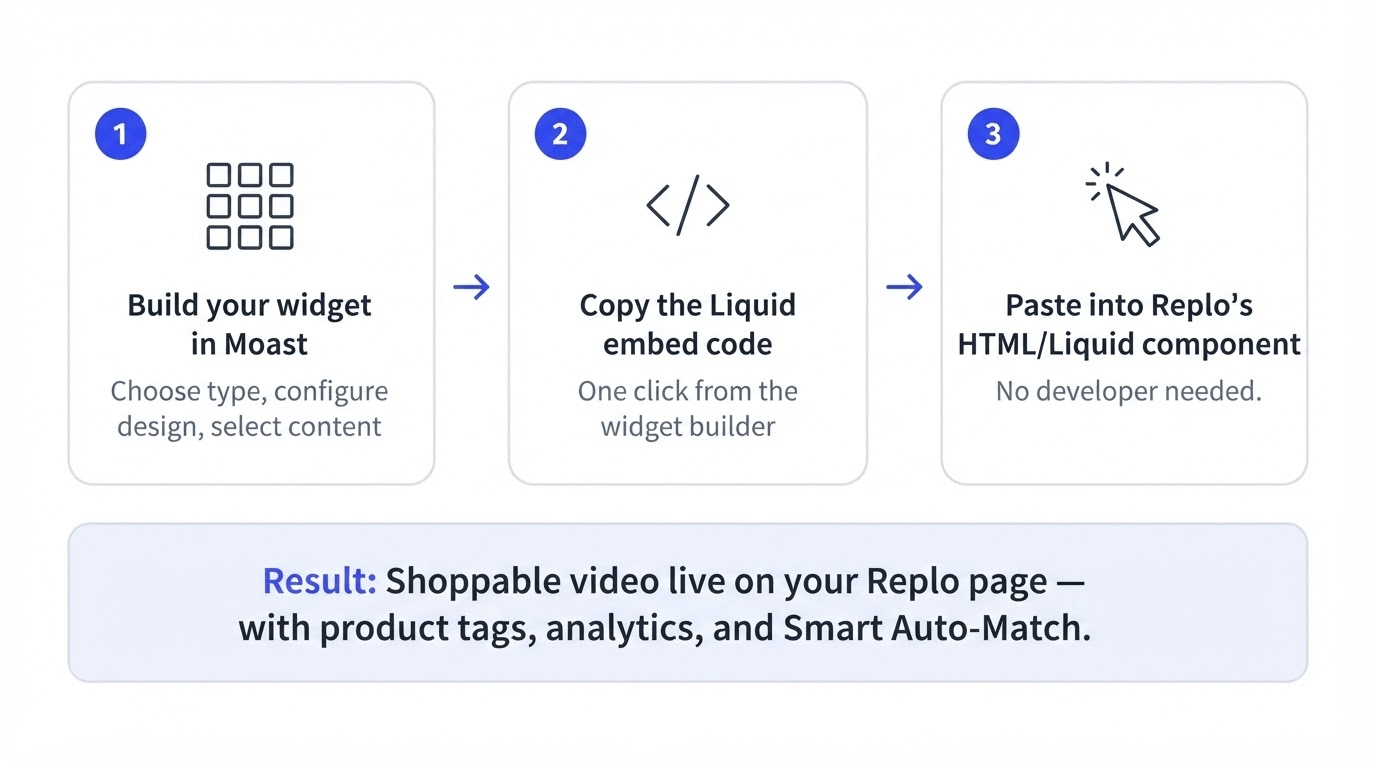
The workflow is straightforward:
- Build and configure your Moast widget in the Moast app
- Copy the Liquid embed code from the widget builder
- Paste it into a Custom HTML/Liquid component in Replo
- Preview and publish
Once live, the Moast widget renders on your Replo page exactly as it would anywhere else on your Shopify store — with full shoppable functionality, product tags, and analytics intact.
For product pages specifically, Moast's Smart Auto-Match feature means you only need to set up the integration once. After that, every time you tag a video with a product inside Moast, that video automatically appears on the matching product page in Replo — no need to update the Replo page again.
Step 1: Create Your Widget in Moast
Before adding anything to Replo, you need a configured widget in Moast. This is where you choose the widget type, design, and the content it will display.
- Open the Moast app from your Shopify admin
- Go to Widgets in the left navigation
- Click an existing widget — or click Create widget to build a new one
- Choose your widget type
- Configure the widget: select which videos to show, set the design options, and choose the page type
- Click Save when your widget is ready
For product pages, select Product page as the page type and Smart Auto-Match when prompted — this tells Moast to automatically show each product's tagged videos on the correct product page, without any manual mapping.
Step 2: Copy the Liquid Embed Code
Once your widget is configured and saved:
- Inside the widget builder, click Embed code in the top right corner
- Click Copy Liquid Code
Keep this code copied — you'll paste it directly into Replo in the next step. The Liquid code is what tells Shopify to render your Moast widget on the page. It's lightweight and does not require any additional scripts or dependencies to work.
A note on Liquid vs JavaScript embed codes: Moast provides both a Liquid code and a JavaScript embed code. For Replo, always use the Liquid code — Replo renders Shopify Liquid natively, so the Liquid version works more reliably and renders faster than the JavaScript alternative.
Step 3: Add the Widget to Your Replo Page
With your Liquid code copied, open your page in the Replo editor:
- Open the Components panel (the left sidebar in the Replo editor)
- In the search bar, type HTML or Liquid
- Drag the Custom HTML/Liquid component onto your page — position it where you want the Moast widget to appear
- Select the component you just placed
- Open the Config tab in the right sidebar
- Click Launch Code Editor
- Paste your copied Moast Liquid code into the code editor
- Close the editor to apply
Where to place it: For product pages, position the Custom HTML/Liquid component directly above your reviews section. This is the highest-converting placement for shoppable video on a product page — it's the exact moment a shopper is looking for social proof before deciding whether to buy. For landing pages, place it below your hero section or alongside a key testimonial or social proof block.
Step 4: Preview and Test Before Publishing
Some JavaScript-dependent features may not render correctly inside the Replo visual editor itself — this is a Replo editor behaviour, not an issue with the widget.
Before publishing, always:
- Preview the page in Replo. Use Replo's built-in preview mode to see how the page renders in a browser context rather than the editor.
- Test on your Shopify store. If Replo gives you the option to preview the page on your live Shopify store or a staging URL, use it. This is the most reliable way to confirm your Moast widget is rendering and functioning correctly — with video playback, product tags, and add-to-cart working as expected.
- Test on mobile. The majority of traffic to most Shopify stores is mobile. Open the page on your phone before publishing to confirm the widget renders correctly, isn't blocking your add-to-cart button, and that video plays properly on a mobile browser.
Once the widget looks and functions correctly in the preview, publish the page normally through Replo.
How to Add Shoppable Video to Replo Product Pages
If you're adding Moast to a Replo product page template — rather than a standalone landing page — the setup is slightly different and significantly more powerful.
The key feature is Smart Auto-Match. Rather than creating a separate widget for each product, you create one Product Page widget in Moast with Smart Auto-Match enabled. Moast then automatically detects which product page a visitor is on and displays only the videos tagged for that specific product.
Setup:
- In Moast, go to Widgets, Create widget
- Under page type, select Product page
- When prompted for content settings, select Smart Auto-Match
- Complete the widget configuration and save
- Copy the Liquid embed code
- In Replo, open your product page template
- Add a Custom HTML/Liquid component above the reviews section
- Paste the Liquid code and close the editor
- Preview and publish
Once the widget is embedded in your Replo product page template, you never need to update the Replo page again. From that point, adding new videos to Moast and tagging them with a product automatically pushes them to the correct product page in Replo. No re-embedding, no page edits, no developer work.
Which Widget Type to Use in Replo
Moast offers several widget formats — the right one for your Replo page depends on the context and goal.
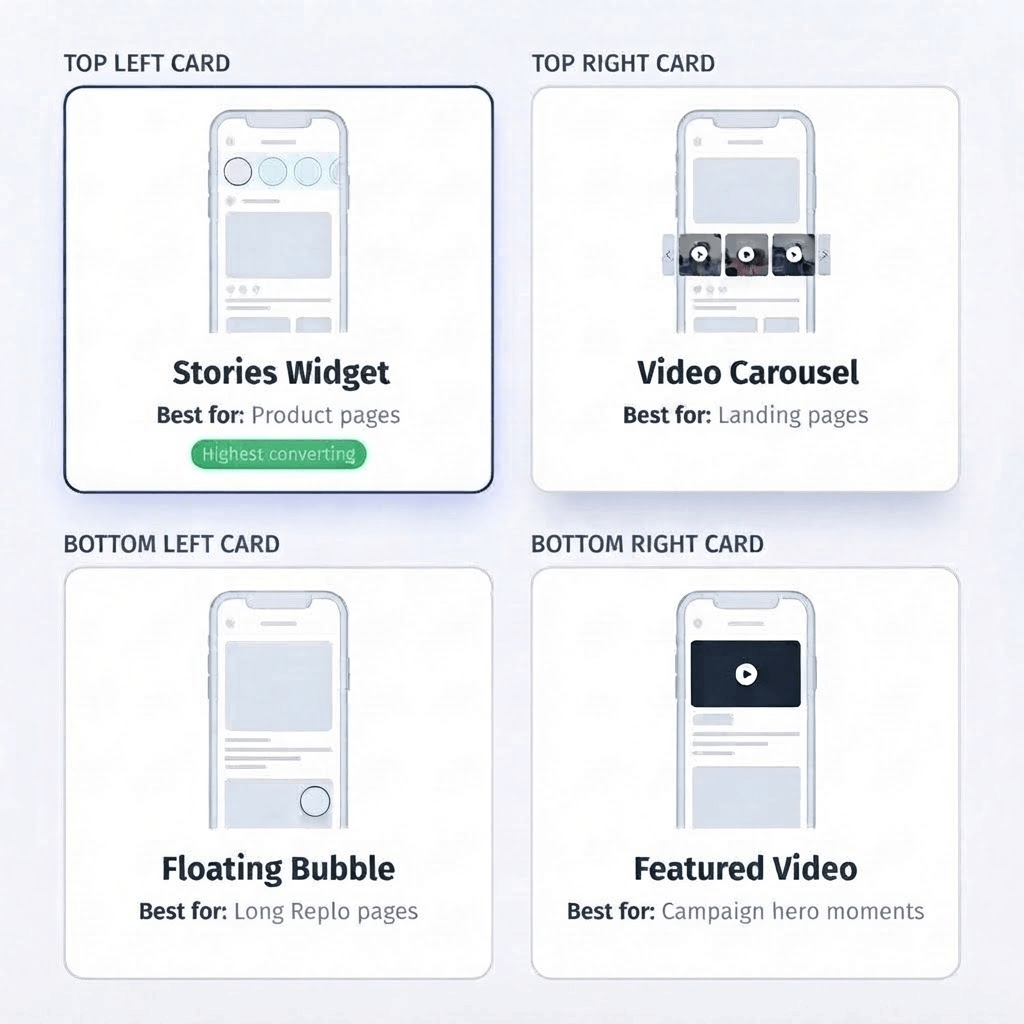
- Stories widget (recommended for product pages). The stories-style pop-up format — circular bubbles that expand into a full-screen vertical video experience when tapped — is the highest-converting format for product page placement. It's familiar, mobile-native, and non-intrusive: the widget sits above your reviews section, shoppers choose to engage, and when they do, they're in an immersive experience with your product.
- Video carousel (recommended for landing pages and homepage sections). A horizontal row of videos that can be scrolled through. Works well on Replo landing pages where you want to showcase multiple customer testimonials or product demo videos side by side. Also effective on homepage sections where you're building initial trust with new visitors.
- Floating bubble (recommended for long Replo pages). A persistent floating widget that follows shoppers as they scroll. Particularly effective on long advertorial or editorial-style Replo landing pages where a visitor might scroll significantly before reaching a purchase decision point.
- Featured video (recommended for single-video hero moments). A single large video placement — good for Replo campaign pages with one exceptional piece of content to anchor the page, such as a founder story, a hero testimonial, or a brand film.
For most product page implementations in Replo, start with the stories widget placed above reviews. For dedicated landing pages, a carousel or featured video typically performs better depending on how many pieces of content you want to showcase.
Getting the Most From Moast on Replo Pages
- Tag products before publishing. Every video in your Moast widget should have a product tag before the page goes live. A video without a tag is content; a video with a tag is a conversion tool. Tagging takes under a minute per video and is what makes the widget shoppable rather than just informative.
- Use Social Sync to keep content fresh. Social Sync automatically imports new TikTok and Instagram content from connected accounts every 24 hours. For Replo landing pages running paid traffic, fresh video content that rotates in over time means returning visitors always see something new.
- Match widget design to your Replo page design. Moast widgets support custom CSS and design configuration. Take a few minutes to match the widget's font, border radius, and accent colours to your Replo page's design language. A widget that feels native to the page converts better than one that looks like a third-party embed.
- Place video at the right moment in the page flow. On a Replo product page, above the reviews section is the highest-converting position. On a Replo landing page, the best position depends on your page structure — generally after you've established the product benefit but before the CTA, when the shopper is in consideration mode and looking for social proof before committing.
- Import your best-performing TikTok and Instagram content. Import TikTok and Instagram Reels directly by pasting a URL — no downloading, no re-uploading. Use Import by Profile Mentions to find content from customers who've already posted about your products.
- Use Replo's A/B testing alongside Moast analytics. You can test widget placement, widget type, or the presence of video vs no video — and measure the direct impact on conversion rate. Combine Replo's A/B test results with Moast's in-widget analytics (views, tag clicks, attributed revenue) to get a complete picture of what's working.
Frequently Asked Questions
Does Moast work with Replo?
Yes. Moast integrates with Replo through Replo's native Custom HTML/Liquid component. You copy the Liquid embed code from the Moast widget builder and paste it into a Custom HTML/Liquid component on your Replo page. No third-party connector or developer work is required. Once embedded, the Moast widget renders on your Replo page with full shoppable functionality — video playback, product tags, and analytics — exactly as it does on any other Shopify page.
Do I need a developer to add Moast to Replo?
No. The entire integration is done through Replo's drag-and-drop editor and a Liquid code paste. If you're comfortable adding components in Replo, you can add Moast without any developer involvement.
Why does the Moast widget not display correctly in the Replo editor?
Some JavaScript-dependent features may not render inside the Replo visual editor itself. This is a known Replo editor behaviour — it doesn't mean the widget is broken. Always use Replo's preview mode or test directly on your Shopify store URL to see the widget rendering correctly. It will display and function properly on the published page.
Do I need to update my Replo page every time I add new videos in Moast?
No — if you set up your widget using Smart Auto-Match on a Product Page widget, you never need to update the Replo page again. Every time you tag a new video with a product in Moast, it automatically appears on the matching product page in Replo. The embed code stays the same; the content updates dynamically.
Which Moast widget type works best in Replo?
For product pages, the stories widget placed above the reviews section is the highest-converting format. For landing pages, a video carousel typically performs best when you have multiple testimonials or demo videos to showcase. For long advertorial or editorial-style pages, a floating bubble widget keeps video accessible throughout the scroll.
Can I use Moast on any type of Replo page?
Yes — product pages, collection pages, landing pages, campaign pages, and any other page type built in Replo. The integration method (Custom HTML/Liquid component + Moast Liquid code) works the same across all Replo page types. For product pages, use a Product Page widget with Smart Auto-Match; for all other page types, use whichever Moast widget type matches your content and layout goals.
Where should I put the Moast widget on a Replo landing page?
On a dedicated landing page, place the Moast widget after your hero section and product benefit introduction — typically alongside or just above a social proof or testimonials section. This positions video at the moment a shopper is in active consideration, after they've understood the product's value but before they've committed to the CTA. On a product page in Replo, place it directly above the reviews section for maximum conversion impact.
Adding shoppable video to your Replo pages is one of the fastest ways to improve the conversion rate of pages you've already invested time and budget in building. The integration takes under five minutes, requires no code, and starts working the moment it's live.
If you need help setting up the Moast + Replo integration, use the chat bubble in the bottom right of the Moast app and the team will walk you through it.
Get started with Moast for free
Related reading: How to import TikTok and Instagram Reels into Shopify · How to increase Shopify PDP revenue with shoppable video · Does shoppable video actually increase conversions?

October 12, 2026
Related content


.jpg)
Turn your social content into a revenue channel
Turn your TikToks and Reels into shoppable videos and boost conversions by 3.5x.